Connect your app
Step-by-step setup, with screenshots, for Claude, ChatGPT, Cursor, VS Code, Claude Code, Codex, Windsurf, Gemini CLI, OpenCode, Devin and any other MCP app, and how to disconnect.
Every app connects to the same address and signs in the same way: on Docshark's own Allow page, where you choose the workspace and what the app may do. Only where you paste the address changes from app to app.
https://dashboard.doc-shark.com/mcpThere is no API key, token or password to copy, and nothing to install on Docshark's side.
The quickest way in
In Docshark, open Settings → Connectors and find AI assistants. Press the app you use: its card shows these same steps with the address already filled in, and Cursor and VS Code get a one-click Add button. Let your AI agent set it up gives you a prompt that adds Docshark to every coding app on your computer at once.
Setting it up for a whole company? See the setup guide for admins.
What every app shows you
Whichever app you use, connecting ends on the same Docshark page.
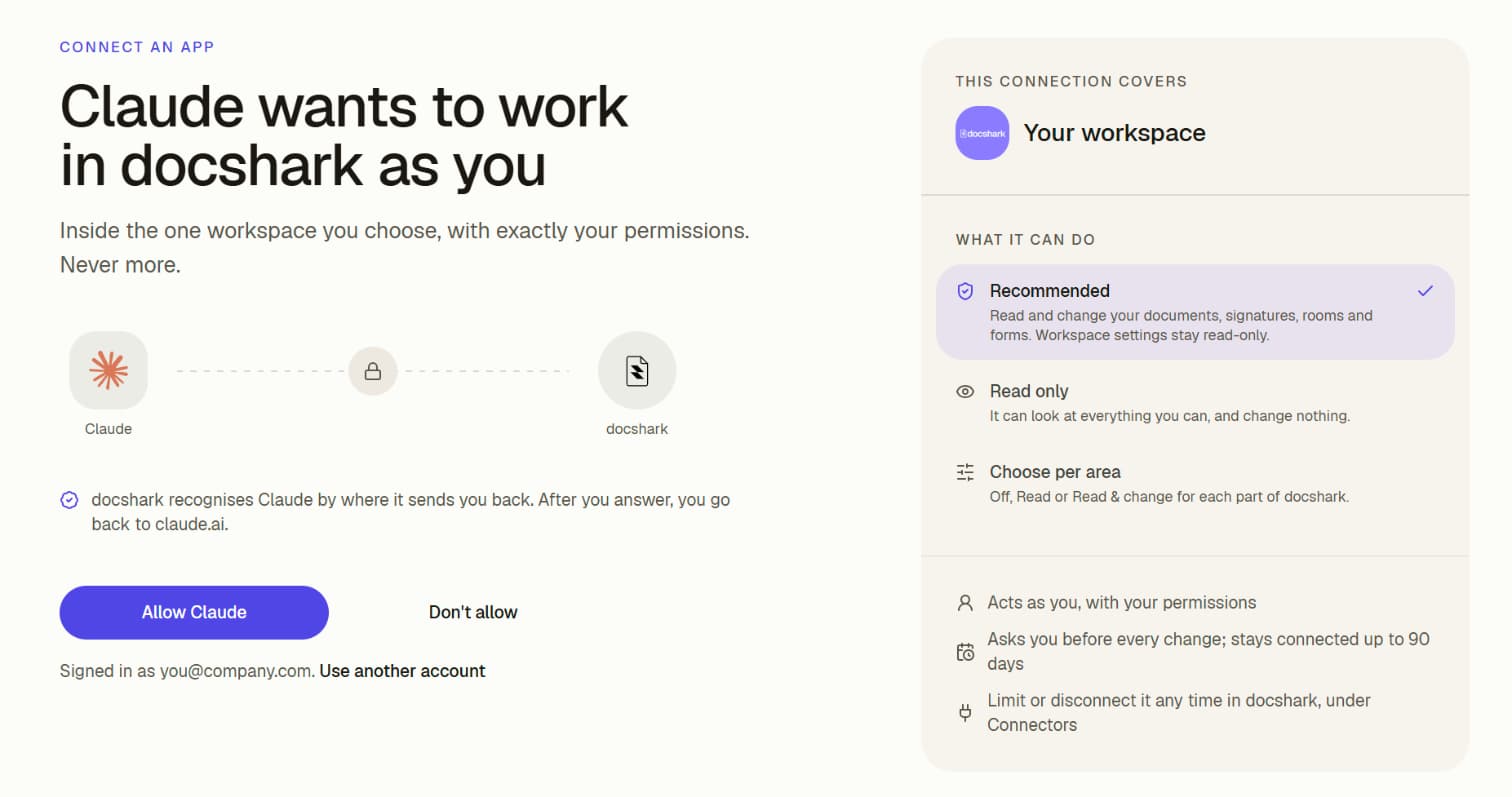
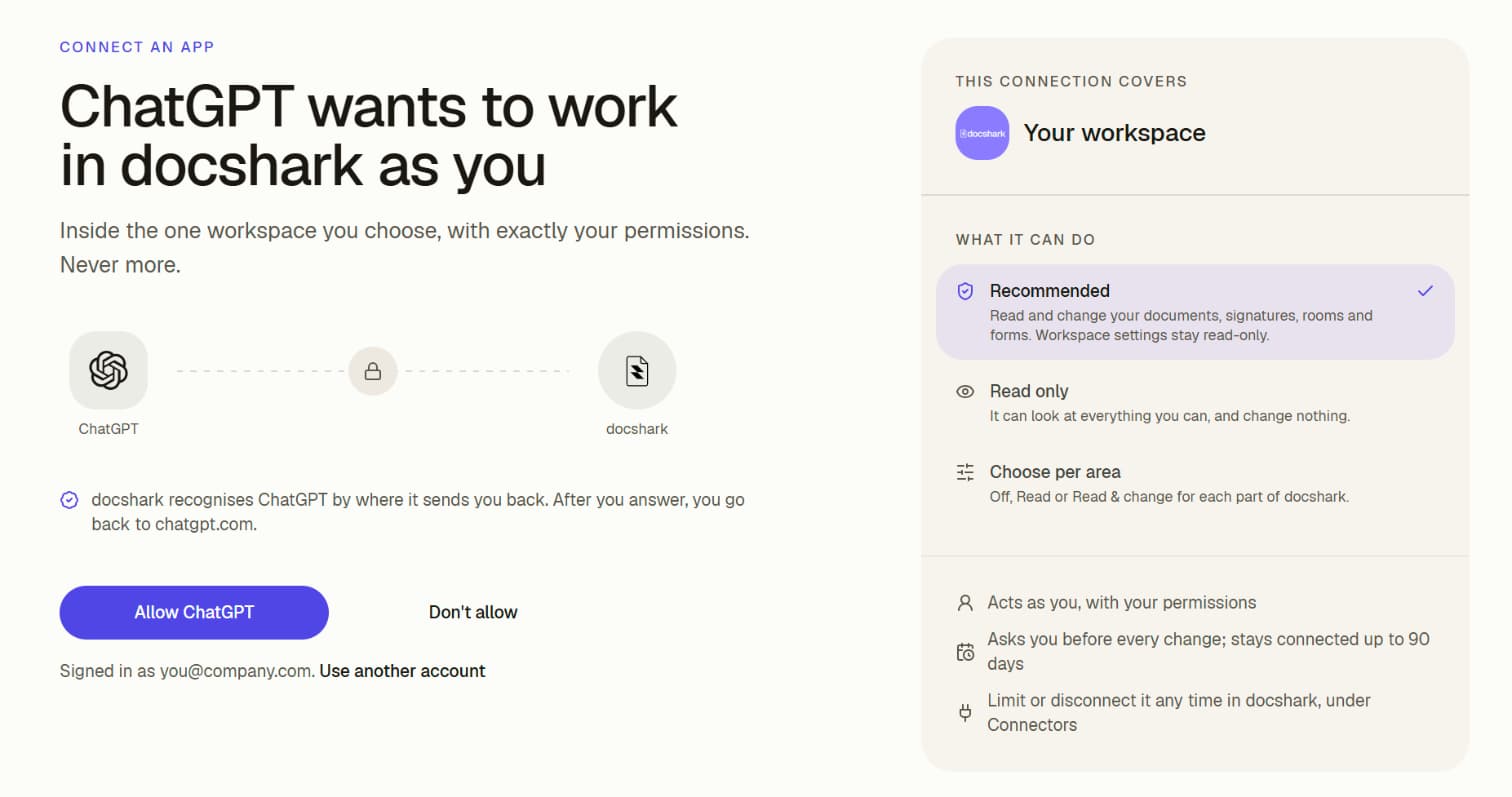
Check the address bar. It must say dashboard.doc-shark.com. If you are not signed in to Docshark, you sign in first. Use another account switches the Docshark account.
Check the workspace. This connection covers names the one workspace the app will work in. If you belong to more than one, pick it there. To use two workspaces, connect twice.
Choose what it can do. Recommended is pre-selected: it reads and changes documents, signatures, rooms and forms, and leaves workspace settings (branding, plan, team) read-only. Read only looks at everything you can and changes nothing. Choose per area sets each part of Docshark yourself: Off, Read, or Read & change.
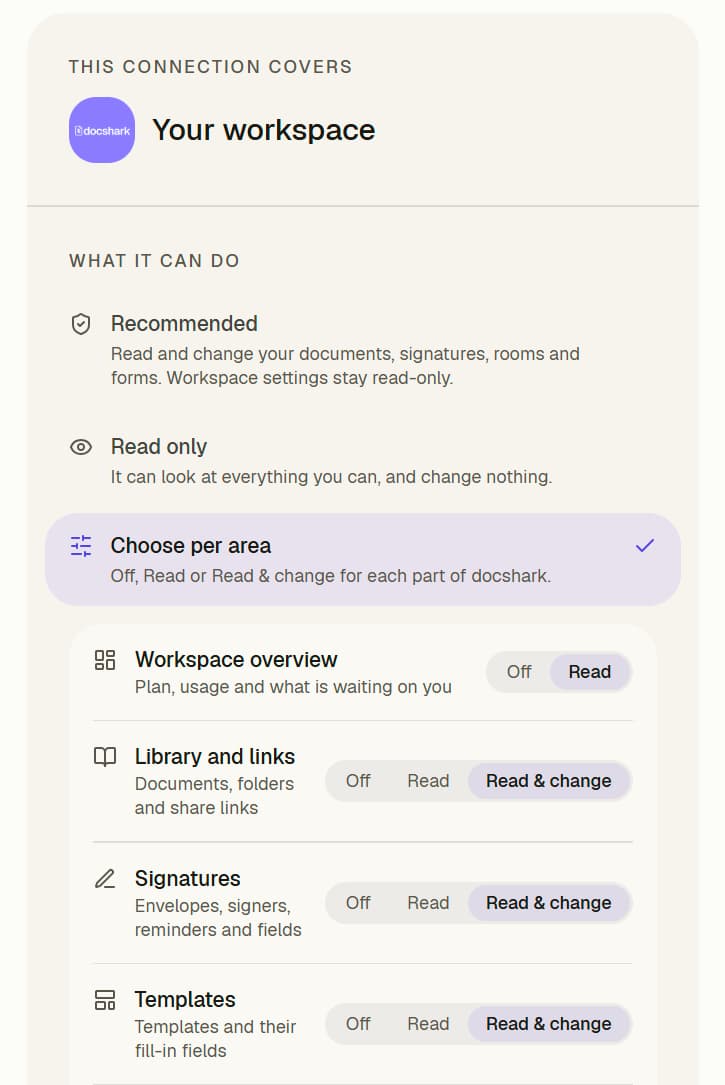
Press Allow. The button carries the app's name (Allow Claude, Allow ChatGPT…). Docshark sends you back to the app and emails you that a new app is connected. Don't allow creates nothing and tells the app you declined.
When an app names itself instead of being recognised by where it sends you back, the page says that Docshark doesn't know this app. That is normal for editors and command-line tools; allow it only if you started the connection yourself.
Claude
Works the same on the web (claude.ai) and in the Claude desktop app: both use the same connectors.
Open Customize, then Connectors. On the left of Claude, open Customize, then the Connectors tab, then Yours. This list holds the connectors you already have.
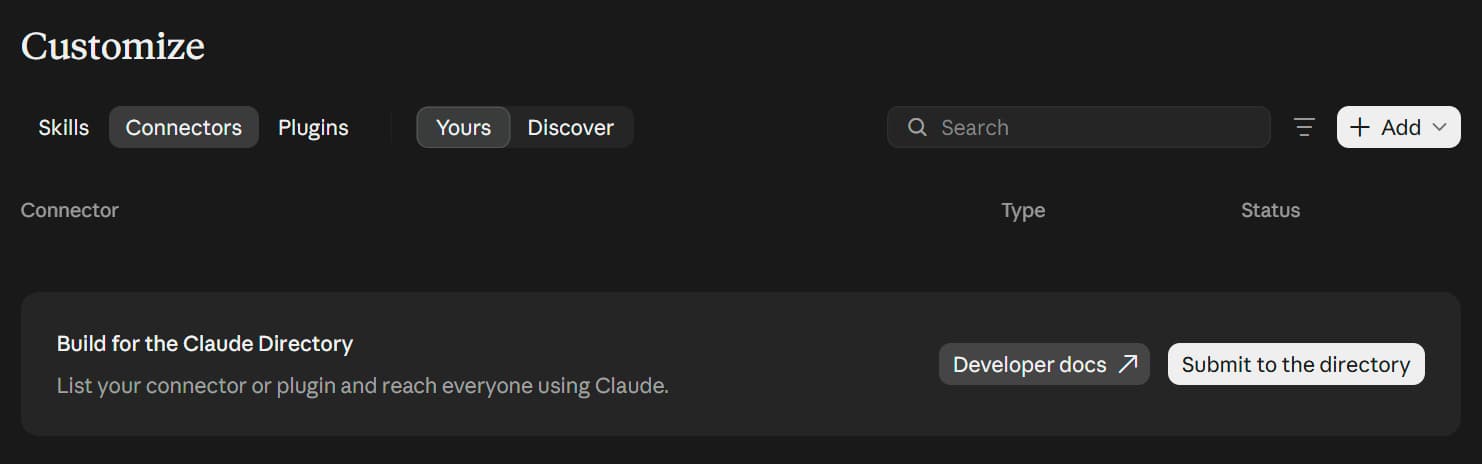
Press Add, then Add custom connector. Add is at the top right of the list.
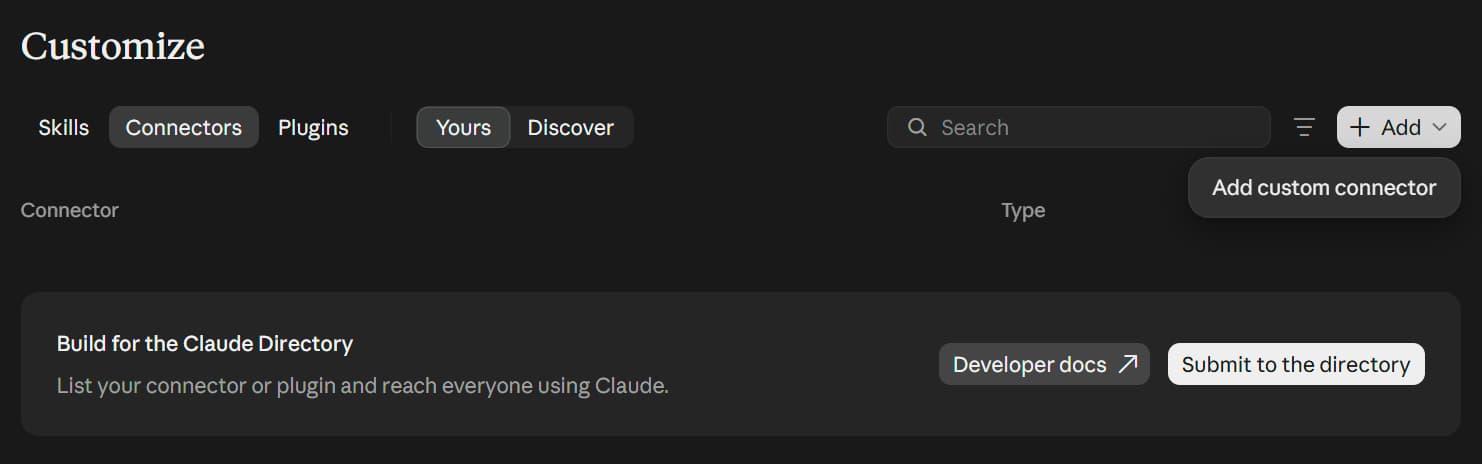
If Add custom connector is missing, your Claude organisation lets only its owners add connectors. Ask an owner to add Docshark for everyone (see the admin guide), then come back and press Connect on it.
Type a name and paste the address. In the first box, type docshark (any name works; it only shows in your connectors list). In the second, paste https://dashboard.doc-shark.com/mcp. There is no key, password, client ID or secret to enter. Press Continue.
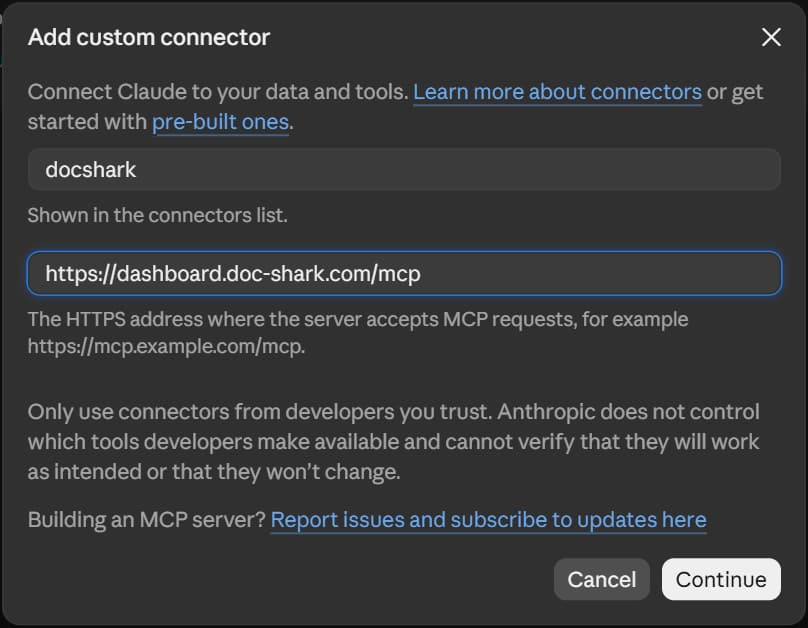
Press Allow Claude. Your browser opens Docshark's Allow page. Check the workspace and the access as described above, and press Allow Claude.
Docshark shows a check. Back in Claude, Docshark sits in Yours with a check under Status.
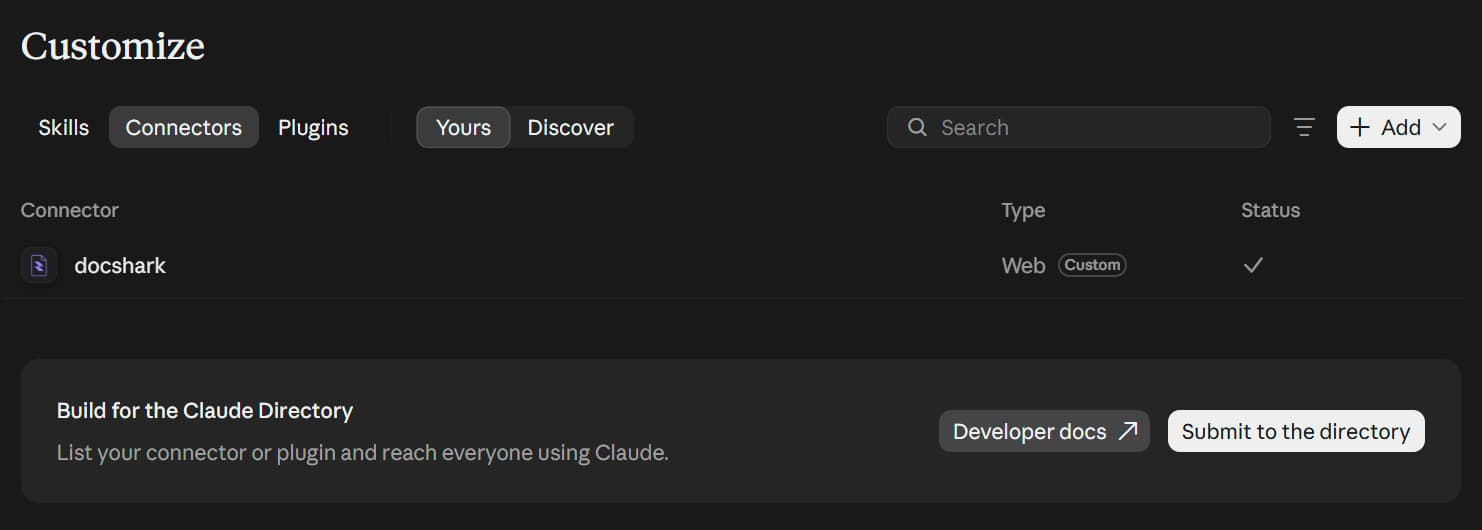
In a chat, make sure Docshark is switched on in the tools menu under the message box, then ask, for example: Who opened my last proposal?
Optional: choose which tools ask first. Press Docshark in Yours. Under Tool permissions, each group of tools and each tool can be Always allow (the check), Needs approval (the hand) or Blocked (the circle with a line). Needs approval is the careful choice for anything that sends, shares or changes.
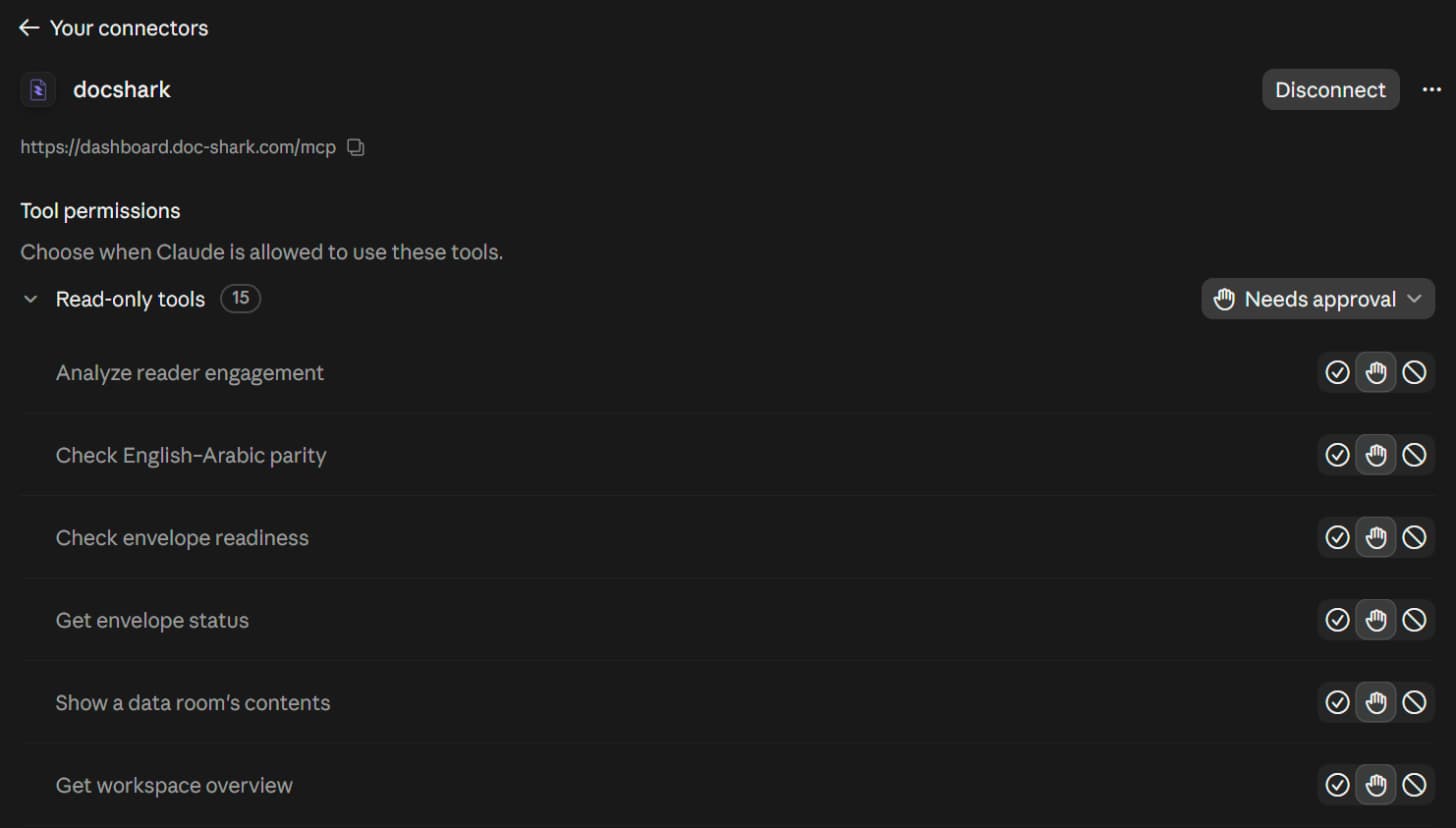
These settings live in Claude. What Docshark allows is set on its Allow page and under Settings → Connectors.
ChatGPT
Works on the web (chatgpt.com) and in the ChatGPT desktop app. On ChatGPT Business, Enterprise and Edu, an admin may have to allow custom MCP servers first: see the admin guide.
Open Plugins, press Add, then Add custom MCP server. Plugins is on the left. Add is at the top right.
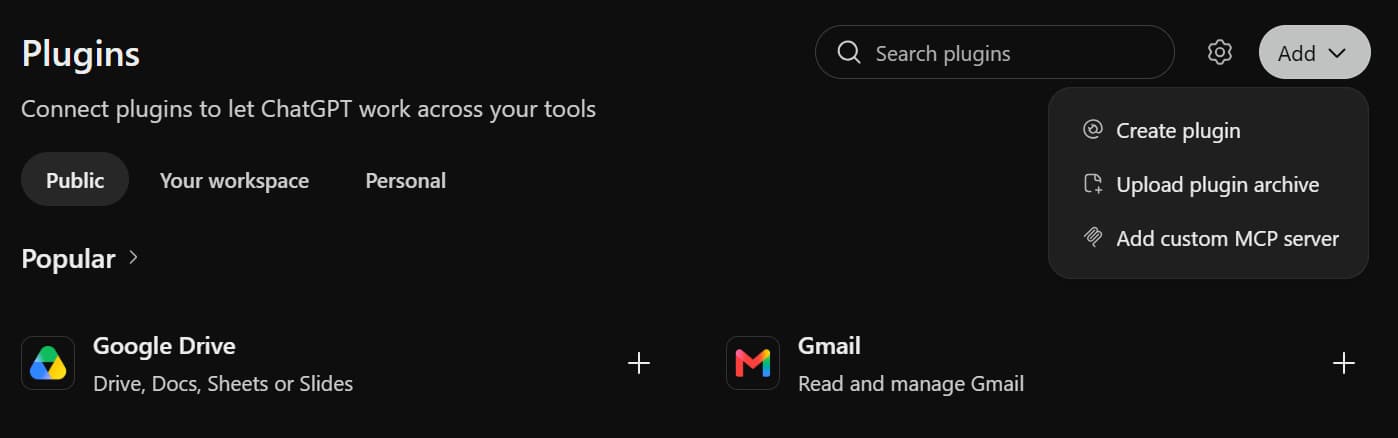
Fill in the form. Name: docshark. Description is optional, for example Documents, signatures, rooms and requests. Under Connection, keep Server URL selected and paste https://dashboard.doc-shark.com/mcp. Leave Authentication on OAuth and leave the advanced OAuth settings as they are: ChatGPT finds Docshark's sign-in on its own. Tick I understand and want to continue, then press Create as a plugin.
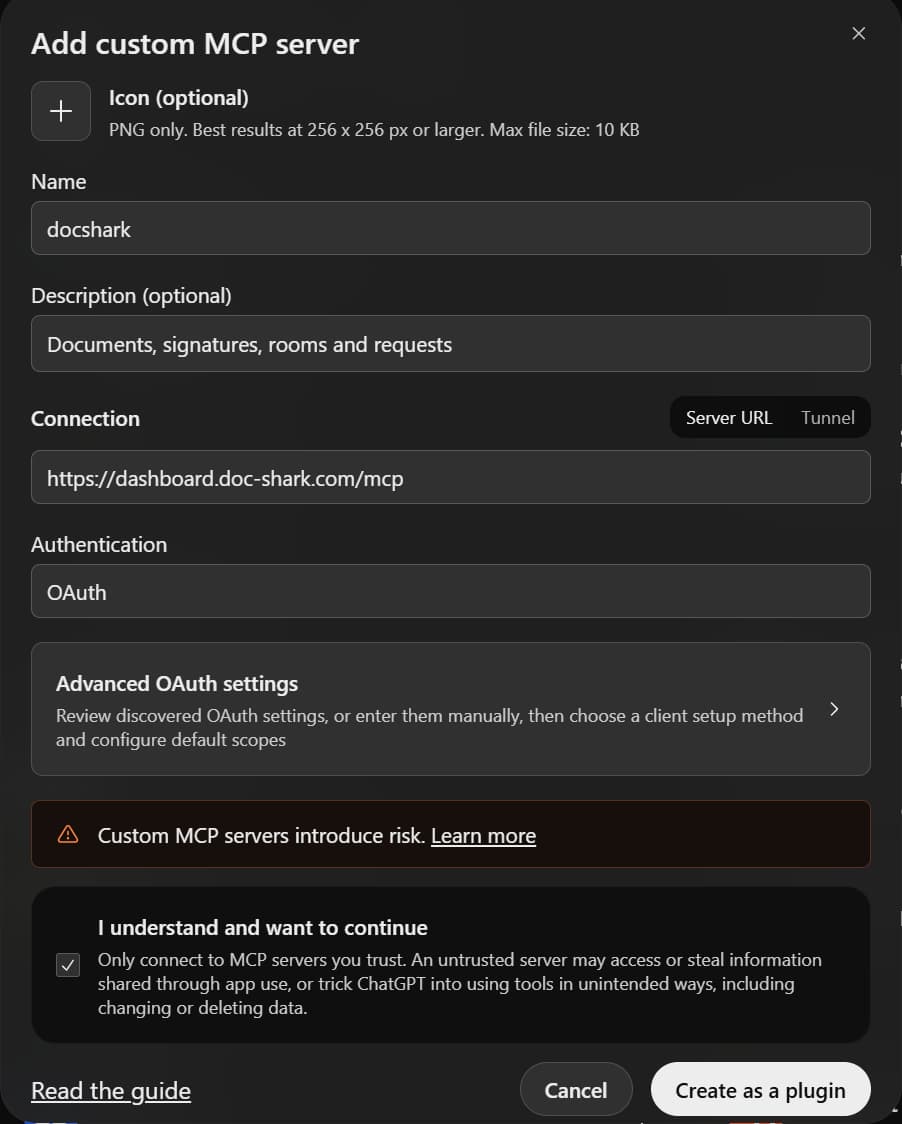
Press Connect Docshark. ChatGPT explains what it may share with the app. On some accounts the button says Continue to Docshark. Your browser opens Docshark.
Press Allow ChatGPT. Sign in to Docshark if asked, check the workspace and the access, and press Allow ChatGPT. You go back to chatgpt.com.
Use it in a chat. Docshark now sits under Plugins → Installed. Press Try in chat (Try now in the desktop app), then ask, for example: Which envelopes are still waiting for a signature?
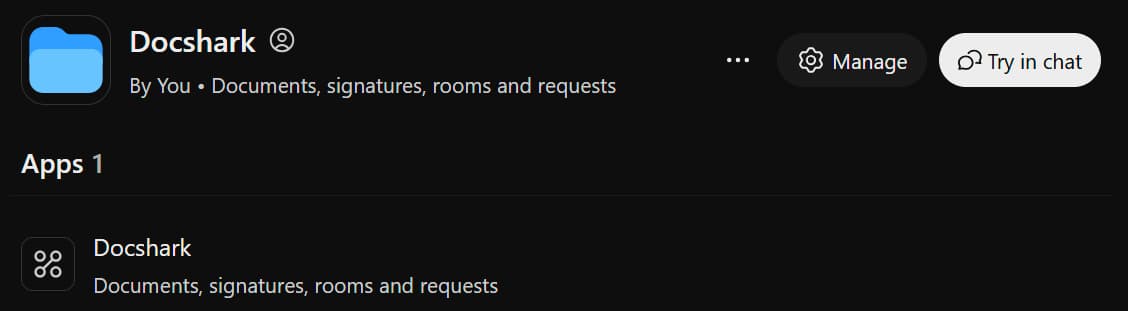
ChatGPT renames these menus from time to time. If you cannot find them, search ChatGPT's help for "custom MCP server".
Cursor
Press Add to Cursor on the Cursor card in Docshark's Settings → Connectors. Your browser asks whether to open Cursor; allow it. Cursor must be installed on this computer.
Press Install. Cursor shows Install MCP server? with Name docshark, Type Remote HTTPS and the address filled in. Leave HTTP headers, Client ID and Client Secret empty.
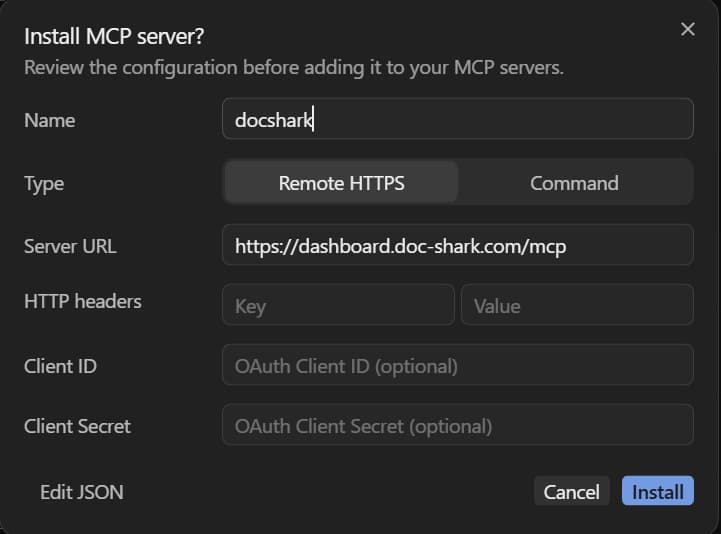
Press Authenticate. Open Cursor's settings, then MCP (in Cursor's agents window: Customize, then MCPs). Docshark shows Needs authentication. Press Authenticate; your browser opens Docshark.
Press Allow Cursor on the Docshark page. The browser hands you back to Cursor.
Docshark is connected. It moves to Connected with its tools enabled. In a Cursor chat, ask, for example: List my data rooms.

No button? Add it by hand. Put this in ~/.cursor/mcp.json for every project, or .cursor/mcp.json for one project (create the file if it is missing), save, then press Authenticate as in step 3:
{
  "mcpServers": {
    "docshark": {
      "url": "https://dashboard.doc-shark.com/mcp"
    }
  }
}
The Cursor command-line agent signs in on its own: cursor-agent mcp login docshark.
VS Code
Docshark works in VS Code's agent chat (GitHub Copilot). Keep VS Code up to date.
Press Add to VS Code on the VS Code card in Docshark. Your browser asks whether to open VS Code; allow it.
Press Install. VS Code opens the Docshark MCP server with the address filled in.
Let Docshark sign you in. VS Code says Docshark wants to sign in with dashboard.doc-shark.com. Press Allow; your browser opens Docshark.
Press Allow on the Docshark page. The browser hands you back to VS Code.
Turn on Docshark's tools. Open Chat, switch to Agent mode, open the tools picker and make sure Docshark's tools are ticked. Then ask, for example: Who read my last proposal?
No button? Add it by hand. Run MCP: Add Server from the Command Palette (Ctrl+Shift+P, or Cmd+Shift+P on a Mac), choose HTTP, paste the address, name it docshark and choose Global to have it in every folder. Or from a terminal:
code --add-mcp '{"name":"docshark","type":"http","url":"https://dashboard.doc-shark.com/mcp"}'Or put it in .vscode/mcp.json for one folder:
{
  "servers": {
    "docshark": {
      "type": "http",
      "url": "https://dashboard.doc-shark.com/mcp"
    }
  }
}
Command-line and coding agents
Each of these keeps its MCP servers in a file or behind a command. Add Docshark, then sign in once; the sign-in opens Docshark's Allow page in your browser.
claude mcp add --transport http --scope user docshark https://dashboard.doc-shark.com/mcp--scope user adds it for every folder. Leave it out for the current folder only, or use --scope project to share it with your team through .mcp.json.
Sign in: start claude, type /mcp, choose docshark, then Authenticate. Press Allow on the Docshark page; Claude Code says the sign-in worked. claude mcp list shows the connection later.
On Windows, ~ means your user folder (%USERPROFILE%). Before editing a config file by hand, keep a copy: other servers in it must stay as they are.
Let an AI agent set it up
In Docshark's Settings → Connectors, Let your AI agent set it up copies a prompt. Paste it into Claude Code, Codex, Cursor or Gemini CLI, and the agent adds Docshark to every app above that is installed, exactly as listed, without touching your other servers. The agent never signs in or presses Allow for you: it ends by listing each app and the sign-in step you take yourself.
Any other app
Any app that supports remote MCP servers over Streamable HTTP with OAuth sign-in can connect.
- Find where the app adds an MCP server. Look in its settings for MCP, Connectors, Integrations or Tools.
- Choose the remote type, often called HTTP, Streamable HTTP, Remote or URL (not a command).
- Paste the address. Leave keys, headers, client ID and client secret empty: the app finds Docshark's sign-in on its own.
- Sign in when the app asks, and press Allow on the Docshark page.
For developers lists what the app reads to do this.
If an app only supports local servers, run Docshark through mcp-remote:
{
  "mcpServers": {
    "docshark": {
      "command": "npx",
      "args": ["-y", "mcp-remote", "https://dashboard.doc-shark.com/mcp"]
    }
  }
}
Check it works
Ask the app something simple, such as What's in my docshark library? or List my latest envelopes. It should call a Docshark tool and answer with your real documents. Then look in Docshark: the app is listed under Settings → Connectors → Your connected apps, with when it was connected and last used.
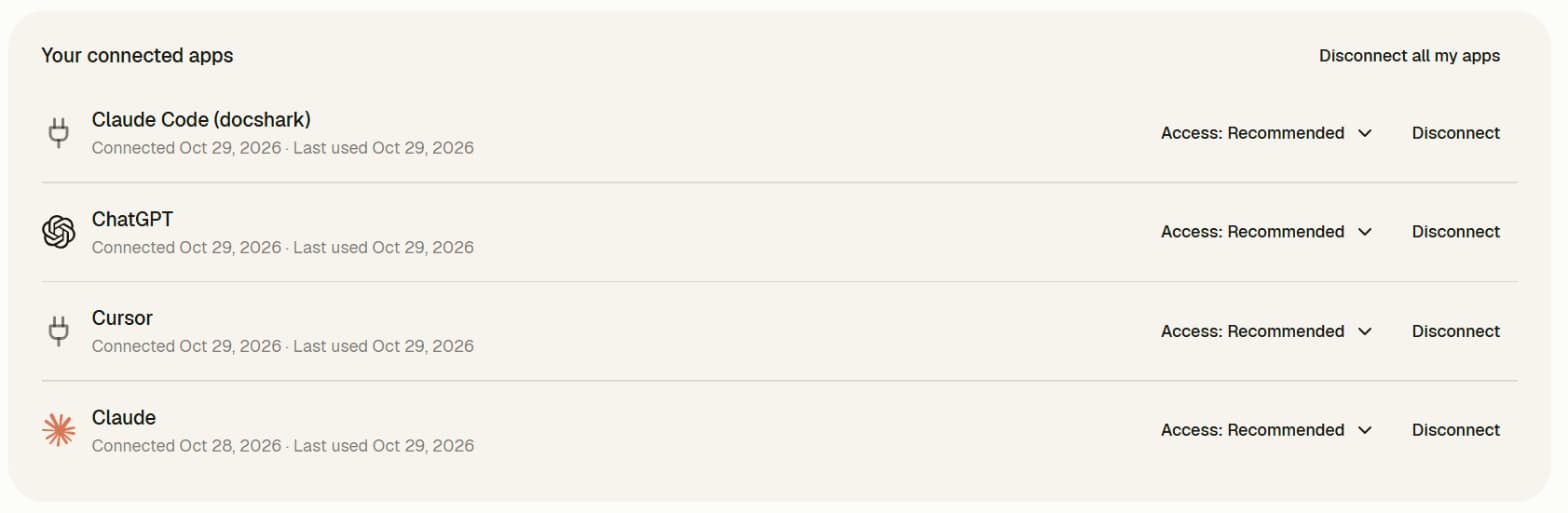
An app Docshark can prove (Claude, ChatGPT) shows its logo. An app that named itself shows a plain plug and the name it gave; that is expected. If something doesn't work, see Troubleshooting.
Change access or disconnect
Under Your connected apps, Access changes what an app may do; the change applies to its next call, without reconnecting. Disconnect stops it at once: its next call is refused and its sign-in cannot be renewed. Disconnect all my apps does that for every app you connected. Removing the connector inside the app may leave Docshark's side open; Disconnect in Docshark always ends it.
People who can manage the Docshark team see every connection in the workspace there and can disconnect any of them. Everyone else sees and disconnects only their own.
Docshark MCP server
Use Docshark from Claude, ChatGPT, Cursor, VS Code and any app that supports the Model Context Protocol. What it is, what it can do, and how it acts.
Setup guide for admins
Roll out the Docshark MCP server to a team. Add it once for your Claude or ChatGPT organisation, decide who may connect and what apps may do, watch and end connections, and offboard people.