Setup guide for admins
Roll out the Docshark MCP server to a team. Add it once for your Claude or ChatGPT organisation, decide who may connect and what apps may do, watch and end connections, and offboard people.
This page is for the person who sets Docshark up for a company: a Docshark workspace owner or admin, and the owner or admin of the company's Claude or ChatGPT account. Each person still connects with their own Docshark account; nothing here shares one person's access with another.
Check the workspace is ready
- Docshark roles. Everyone who will connect needs a role in the workspace that includes Docshark. An app can only ever do what its person can do in Docshark, area by area (see Access).
- Mako is on. Apps reach Docshark through Mako, which is on for every workspace unless the owner turned it off. The owner controls it in Settings › Mako. While it is off, no app can use the workspace, and people who try are told to ask the owner.
- Nothing to install, no keys to hand out. There is no API key, client secret or IP list to manage. Each person signs in with OAuth on Docshark's own page.
Add Docshark for your AI app's organisation
Do this once if your company uses Claude Team or Enterprise, or ChatGPT Business, Enterprise or Edu. On personal plans, people add Docshark themselves (Connect your app).
Claude Team and Enterprise
On these plans only an Owner adds a custom connector (on Enterprise, also anyone whose custom role can manage the organisation's connectors). Members then connect it with their own account.
- As an owner, open Claude's Organization settings → Connectors.
- Press Add, choose Custom, and choose Web if Claude asks for the type.
- Name it
docsharkand pastehttps://dashboard.doc-shark.com/mcp. Leave the advanced OAuth fields empty; Docshark registers Claude on its own. Save. - Optional: open Docshark in the organisation's connectors and set how each tool is approved for members: Always allow, ask members to confirm every call, or Block a tool. Confirming every call is the careful choice for tools that send, share or change.
- Tell your team: Docshark now appears under Customize → Connectors for each member. Each presses Connect and then Allow Claude on Docshark's page.
Claude's own guide: custom connectors.
ChatGPT Business, Enterprise and Edu
Custom MCP servers in a company workspace go through ChatGPT's developer mode.
- As a workspace owner or admin, open Workspace settings → Permissions & roles and turn on developer mode (custom MCP connectors). On Business, each admin turns it on for themselves; on Enterprise and Edu you can grant it to chosen people with roles.
- Add Docshark as a custom MCP server with the address above and OAuth sign-in, test it, then publish it to the workspace and choose who can use it.
- Each person then connects it and presses Allow ChatGPT on Docshark's page.
OpenAI's own guide: developer mode and MCP apps. OpenAI renames these settings from time to time.
Editors and coding agents
Cursor, VS Code, Claude Code, Codex, Gemini CLI, Windsurf, OpenCode and Devin keep servers per person, in a file or a command. Share Connect your app, or the Let your AI agent set it up prompt from Settings → Connectors. For a shared repository, claude mcp add --scope project writes Docshark into the project's .mcp.json for everyone who opens it; each person still signs in as themselves.
Decide what apps may do
Each person chooses an app's access on Docshark's Allow page, and can never grant more than their own role allows.
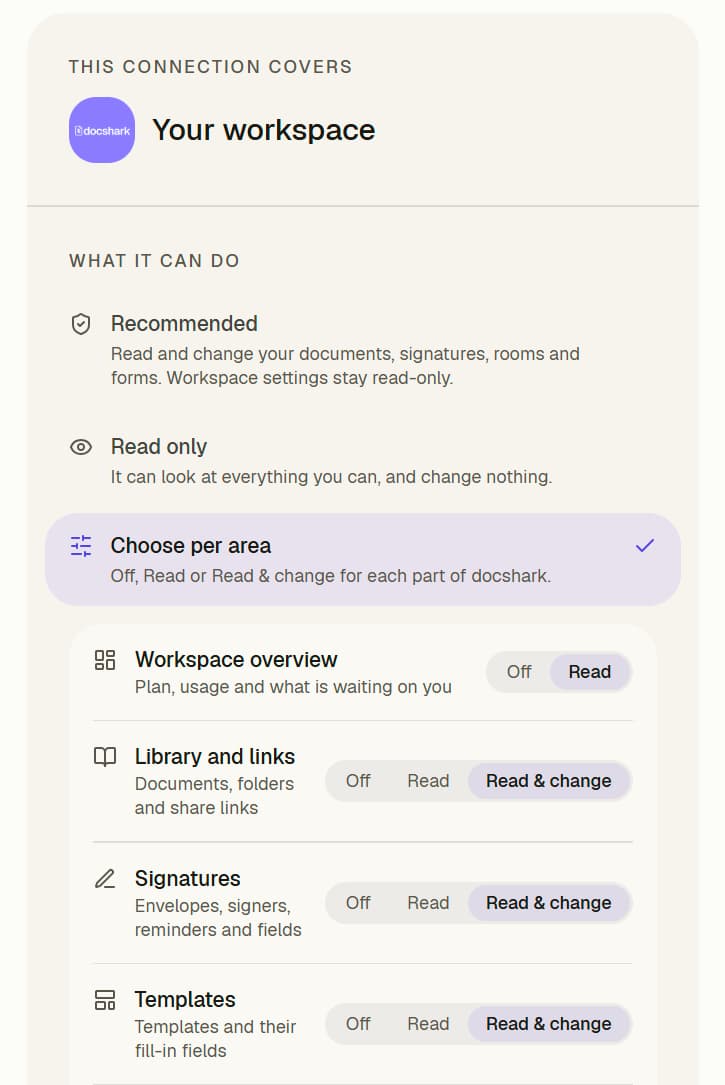
- Recommended is pre-selected: documents, signatures, rooms and forms can be read and changed; workspace settings (branding, plan, team) stay read-only.
- Read only suits people who only ask questions.
- Choose per area sets each of the nine areas to Off, Read, or Read & change.
To limit what apps can do across the company, limit the Docshark role: an app is checked against the person's current permissions on every call, so a role change applies to every app that person connected, at once. In Claude, the organisation's tool approvals (step 2) add a second layer on top.
Watch and end connections
Open Settings → Connectors in Docshark. People who can manage the Docshark team see every connection in the workspace under Your connected apps: the app, the person, when it was connected and last used, and its access.
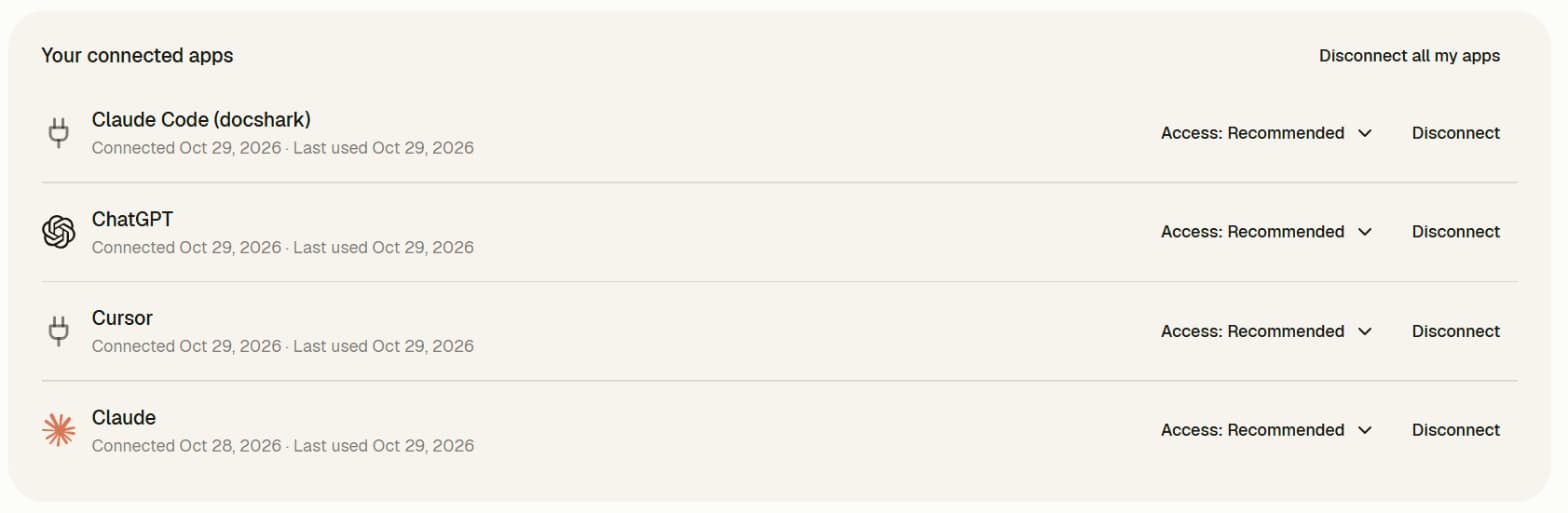
- Disconnect ends a connection at once: its next call is refused and its sign-in can't be renewed.
- Each person can also change the access of their own connections, or press Disconnect all my apps.
- An app Docshark can prove (Claude, ChatGPT) shows its logo. An app that named itself shows a plug and the name it gave.
- Each person gets an email from Docshark when they connect a new app, so a connection nobody expected is noticed.
Offboarding and lifetimes
- Someone leaves or loses their Docshark role. Their connections stop on the next call. There is nothing extra to revoke, but you can disconnect them in Settings → Connectors to tidy the list.
- How long a sign-in lasts. An app's access pass lasts one hour and is renewed quietly. However often it is renewed, a sign-in ends 90 days after the person pressed Allow, and they press Allow again.
- Turning it off for everyone. The owner turns Mako off in Settings › Mako. Every app stops on its next call, and nobody can connect until it is back on.
What your security team will ask
| Question | Answer |
|---|---|
| Where do people sign in? | Only on dashboard.doc-shark.com, with their Docshark account. The AI app never sees their password. |
| What does the app hold? | A short-lived access pass and a renewal pass for one person in one workspace. No API key. |
| Can an app do more than its person? | No. Every call is checked against the person's current role and the access chosen for the app. |
| Does Docshark keep what the app sends? | It records which tool ran, for whom and when. It does not record your documents' content in that record. |
| Can the app reach another workspace? | No. A connection covers the one workspace picked on the Allow page. |
| How do we stop it? | Disconnect one app, Disconnect all my apps, remove the person's role, or turn Mako off. |
Connect your app
Step-by-step setup, with screenshots, for Claude, ChatGPT, Cursor, VS Code, Claude Code, Codex, Windsurf, Gemini CLI, OpenCode, Devin and any other MCP app, and how to disconnect.
Tools
Every tool the Docshark MCP server offers, with its area, whether it reads or changes, who can use it and what it does.